Posterino » FAQ
Here you find the answers to the following common questions:
License
I did not receive my license, what next?
How do I activate Posterino?
How do I retrieve a lost license?
How do I get rid of the "Posterino Demo" watermark?
How do I install a Posterino license file?
Where is my license file?
Posters
How do I get my poster printed?
What is the maximal poster size?
Postcards
What does a postcards cost?
How do I pay for my postcard?
To which countries can I send a postcard?
What postcard sizes are available?
Can I customize the postcard stamp?
Can I change the font of the text?
Trouble Shooting
Why does a rendered document looks blurry when printed?
Why does an Aperture project not show up in the Posterino Image Picker?
Why does a postcard document gets no postmark when emailed?
General Questions
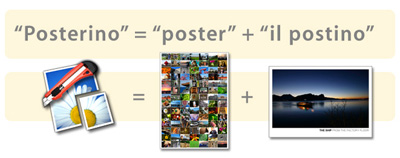
Why the name 'Posterino'?
How do I move Posterino to a new OS or a different Mac?
Is there a MS Windows version of Posterino?
License
In 99.9% of all circumstances we did sent out your license. Really. So please proceed as follows:
- Check your spam filter for mail from support@zykloid.com and a subject line like Posterino License for...
- If you can't find your license in the spam filter, go to our support page and use the Lost Your License? form to re-send your license.
- If you did not receive the re-send license either, please use our contact form to get in touch with us.
- If it appears as if we don't reply on your request, please consider using an alternative e-mail address. Bouncing mail happens far more often than you may think ;-)
To activate Posterino:
- Make sure you are using the latest version of Posterino.
- Start Posterino
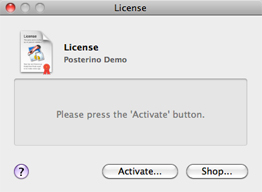
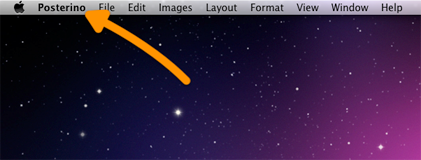
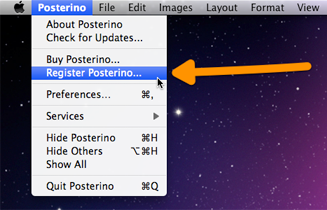
- Choose License... from the Posterino menu to open the license dialog:
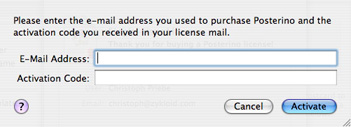
- Press the Activate... button. A sheet will appear holding edit fields for your e-mail address and the activation code:
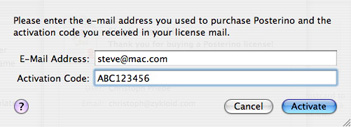
- Enter the e-mail address you used to purchase Posterino and your activation code into the edit field exactly as it is shown in your license mail without any additional symbols:
- Press the Activate button. Posterino will now download and install your license. You need access to the internet to activate Posterino.
If your activation code looks like this:
posterino:email=steve@mac.com&order_number=ABC123456
just enter the code after order_number= as your activation code. In our example this is: ABC123456.
If you should have problems activating Posterino please contact us.
To retrieve a lost license go to our support page and use the Lost Your License or Gift Code? form.
The words 'Posterino Demo' are inscribed in large friendly red letters on top of your rendered image. To get rid of this simply follow these steps:
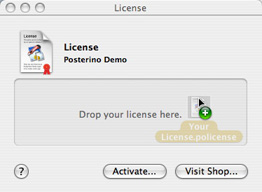
Installing the license file by hand is an alternative approach to downloading the license file using the product activation method described above. You need a Posterino license file for this task (a file ending in .policense).
To install your Posterino license:
- Start Posterino
- Choose License... from the Posterino menu to open the license dialog:
- Drop your license file onto the dialog:
Your license is paced in the folder:
~/Library/Application Support/Posterino/
The '~' character denotes your home folder.
Posters
You have several options to print your poster:
- iPhoto You can use the Kodak print service build into iPhoto. However, maximal paper sizes supported by the Kodak print service is differ from country to country. To get your poster size right, make sure to check this first.
- Internet based Services Use one of various internet base print services. The possibilities are endless. For example, it may be possible that you can print your images right from your Flick.com account.
- Local Printshop Put your poster image on a memory stick or burn it to a CD and let your local printshop print your poster.
In general you are free to use any print service you like.
In the current version, Posterino uses your computers system memory to render the poster. In general, paper sizes of A1 or 30"x20" are no problem. If you need something larger, have a look at Changing the paper size under Layout Options in the online help.
However paper sizes of e.g. 50" x 100 feet are currently FAR out of the reach of Posterino.
Postcards
For the most current price-list please visit our online shop.
You can pay your postcard using PayPal, Click & Buy, a coupon or - if your are living in Austria, Germany or Switzerland - via your mobile phone.
To all. If the country your are looking for is not listed in the "Country" popup menu of the postcard details screen, choose "Other Country" and enter the name by hand.
Currently the size of the postcard is A6 (5.6" x 4.1") and we will make more sizes available in the near future.
Not yet, but we are working on this topic.
Not yet, but we are working on this topic too.
Trouble Shooting
A document that looks good on screen and blurry when printed is in most cases the result of the wrong resolution (DPI) chosen for the document. A document made for printing needs at least 200 DPI to look good.
The reason for this problem may be that...
- ... the resolution (DPI) of the document is to low.
- ... the chosen paper size is smaller than the size of the document printed.
- ... the preview images generated by Aperture are to small (if you are using Aperture).
To solve the problem:
- Choose the command from the menu to inspect the settings of your current document. Have a look at the document listed among the details. Is this what you expected?
- If necessary, change the resolution of your current document using the command from the menu.
- Make sure to choose the right while you create a new document from a template. Have a look at the Paper Size article to get an idea of how to create your own paper sizes.
The reason for this problem may be that...
- ... you did switch off preview image generation for that particular Aperture project.
To solve the problem:
- Switch on preview image generation for that Aperture project.
The reason for this problem may be that...
- ... your document needs a postage stamp object.
- ... postmarking preferences are switched off.
To solve the problem:
- Add a postage stamp object to your document.
- Go to > > and check the option.
General Questions
The name derives from this simple equation:

You need to copy the following file and folder:
- Prefs:
~/Library/Preferences/com.zykloid.Posterino.plist - Data:
~/Library/Application Support/Posterino/
The '~' character denotes your home folder.
No. And currently we have no plans to create a version for MS Windows.